TERNA3D™ Documentation#
3D machine control for excavators. Learn how to work with the TERNA3D™ app, bring your design files into the cab and dig to grade with confidence.
Tutorials#
Short videos that show the system in use.
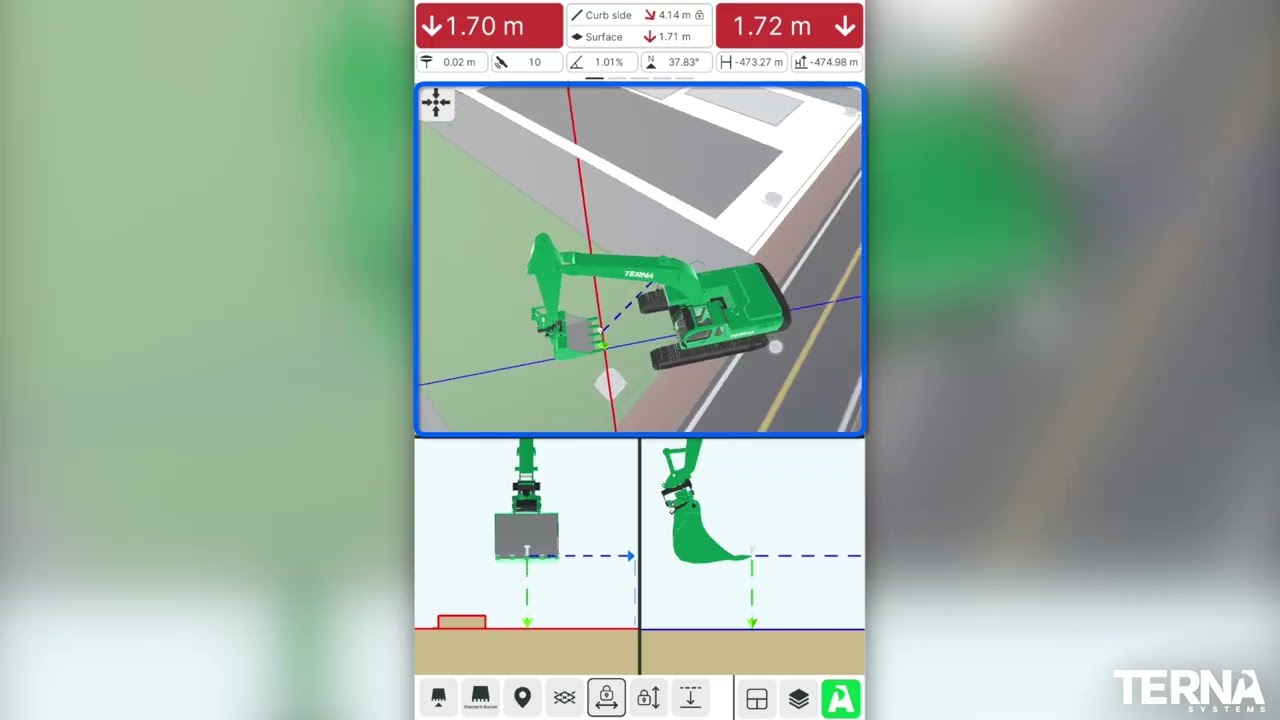
Introduction to TERNA3D™
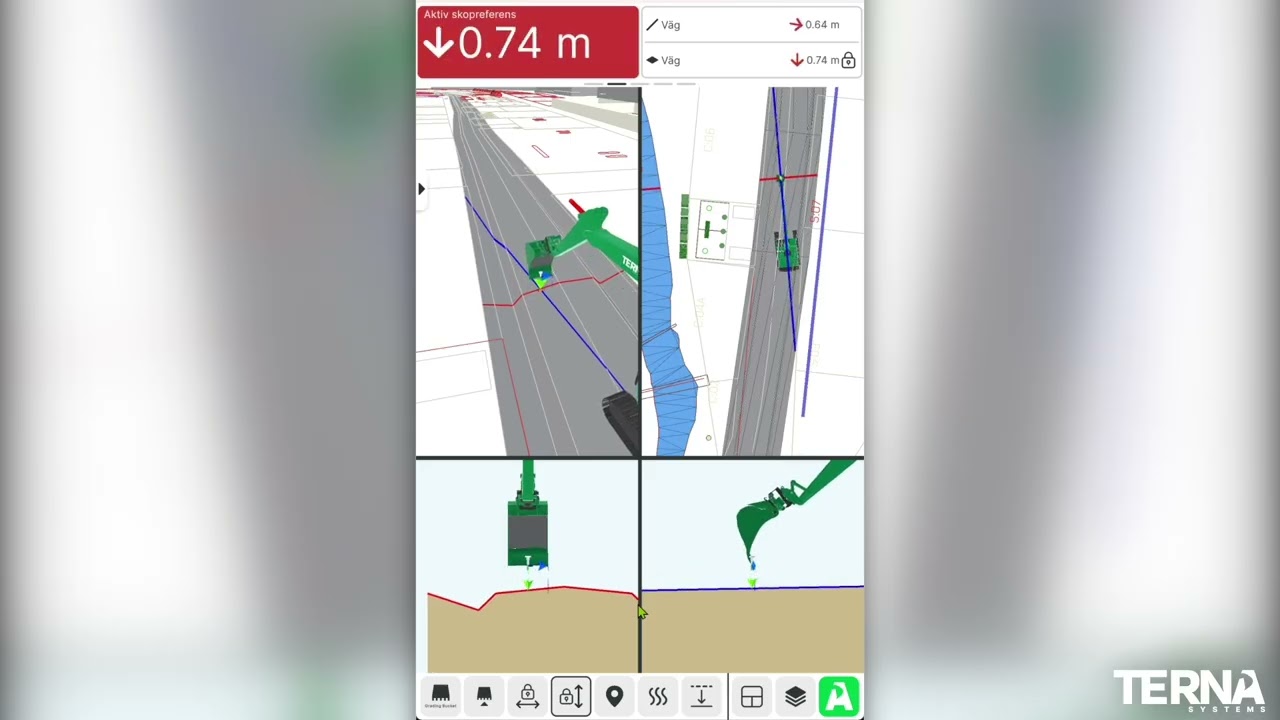
Working with points, lines and surfaces
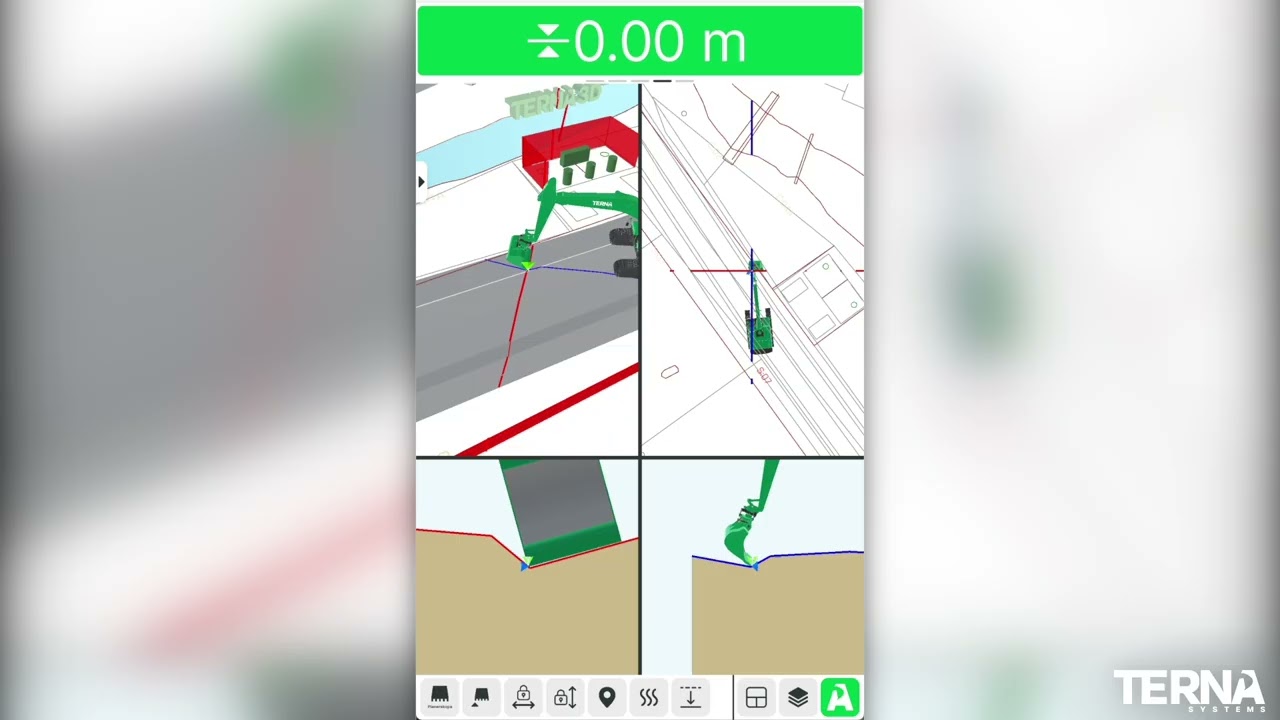
As-built points
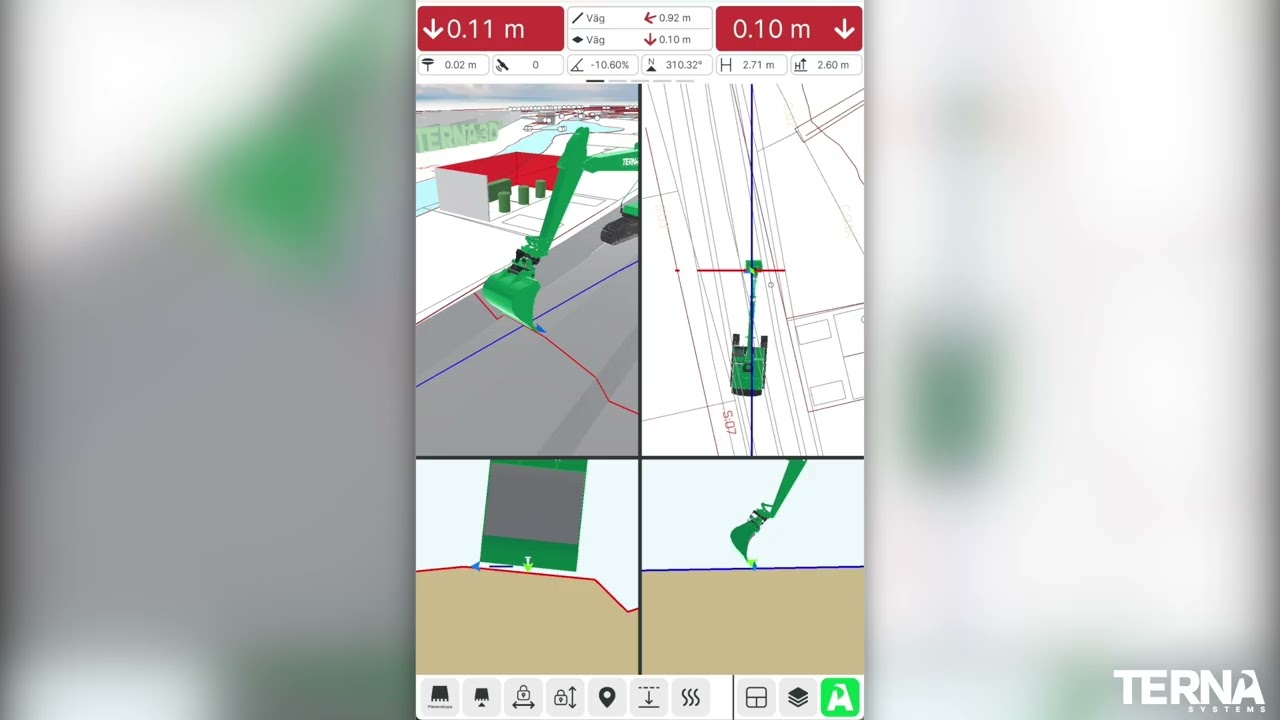
Editing tolerances
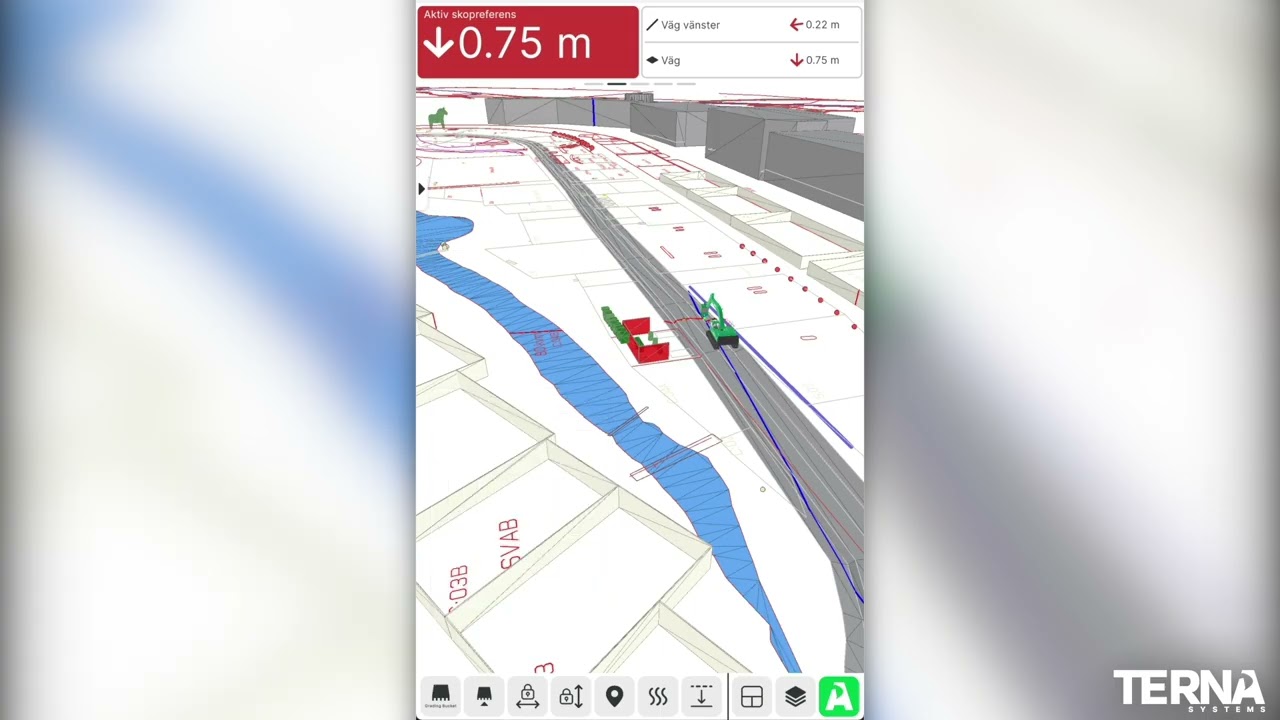
Render options
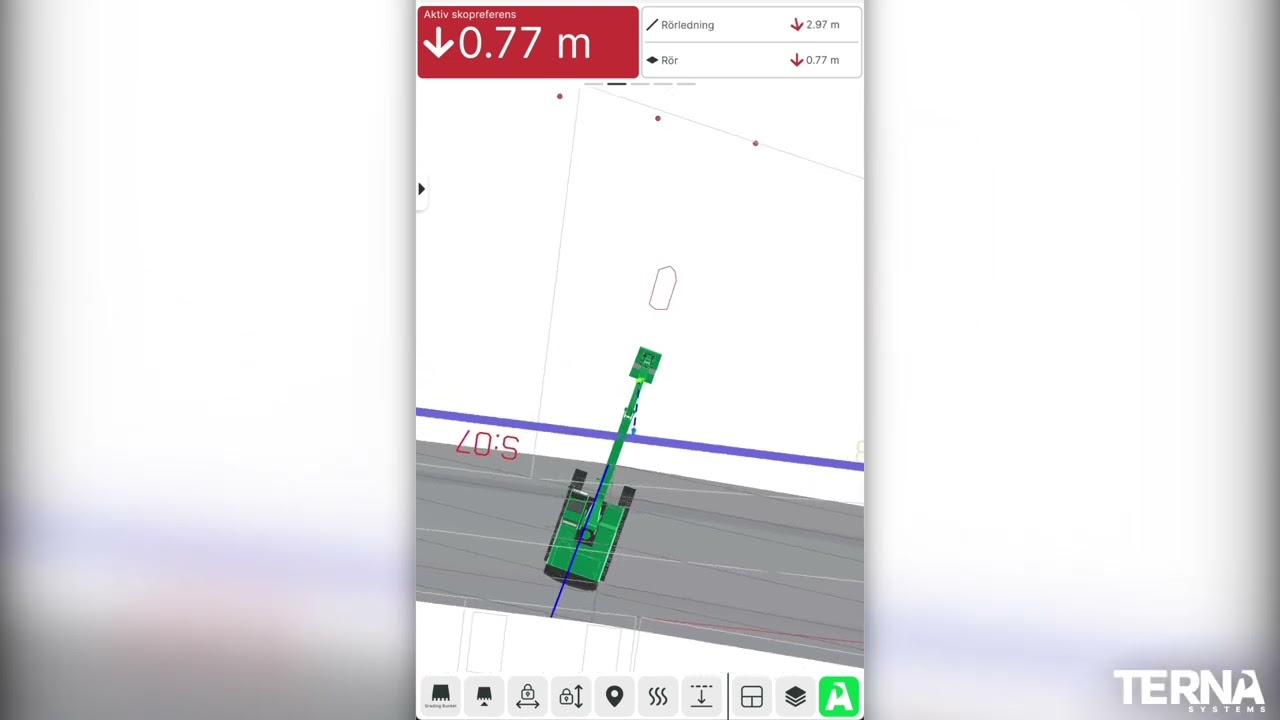
Camera rotation
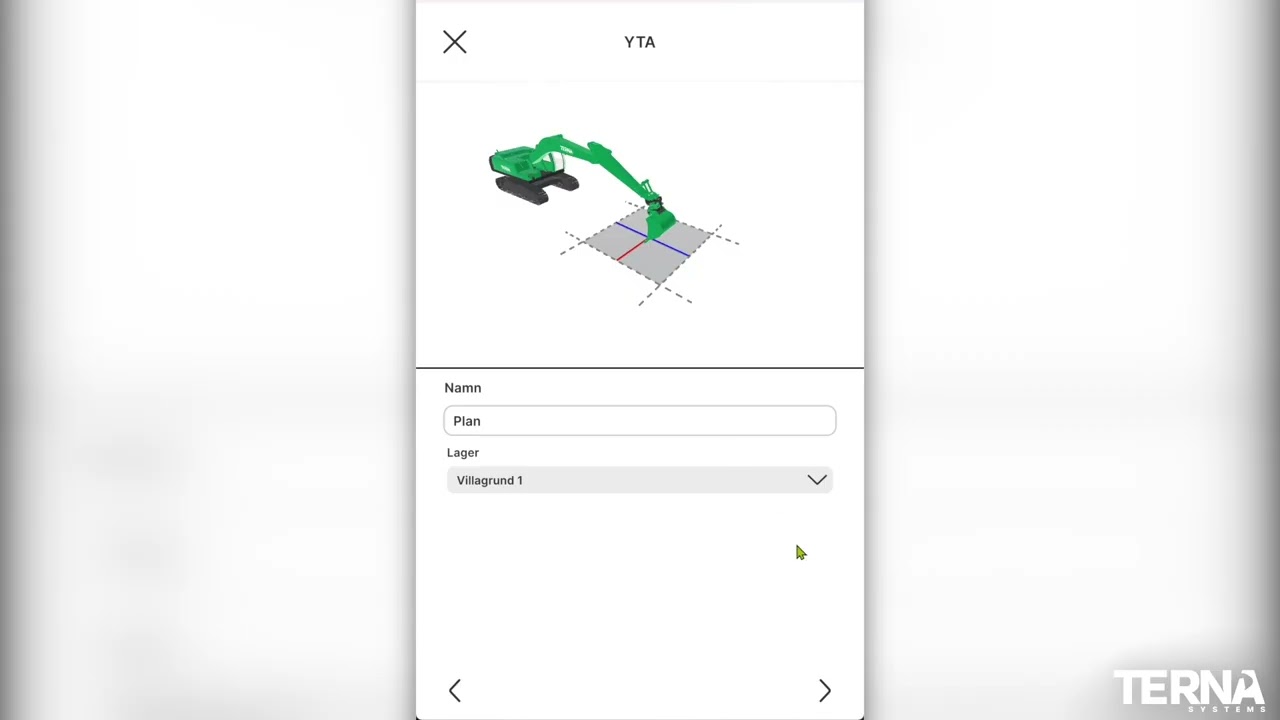
In-field design: plane and slope
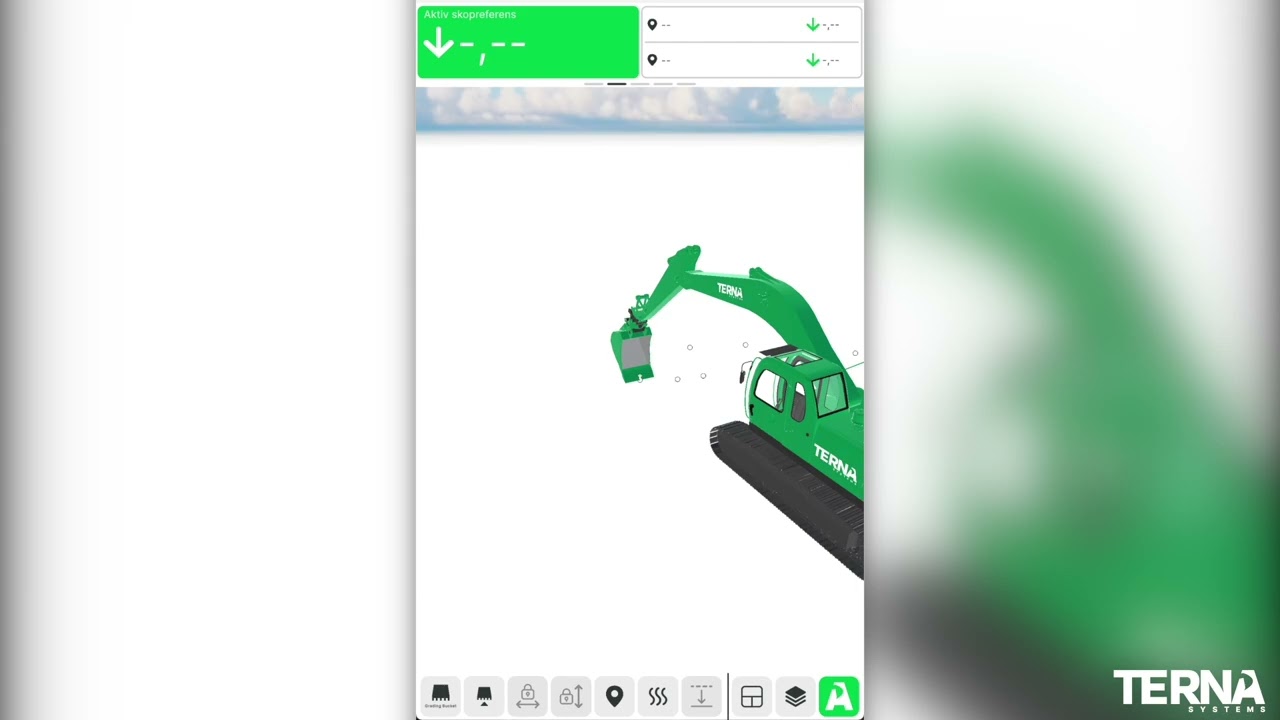
In-field design: surface
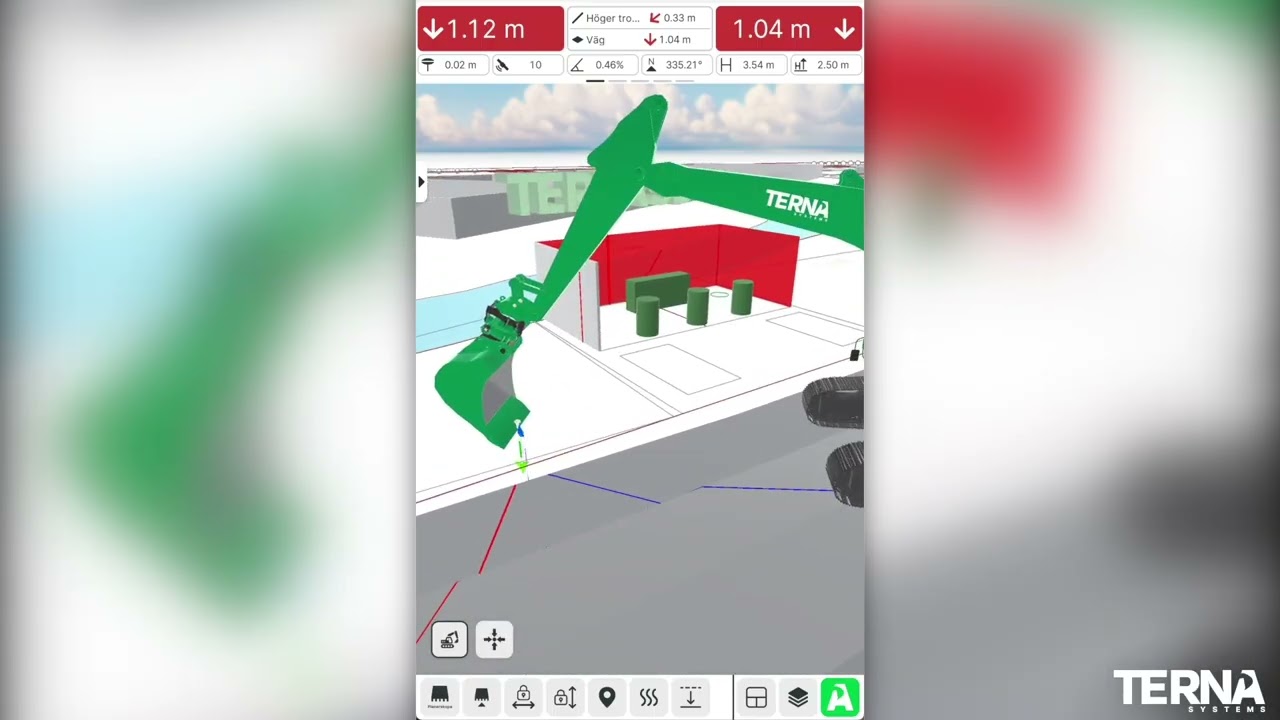
Surfaces as avoidance zones
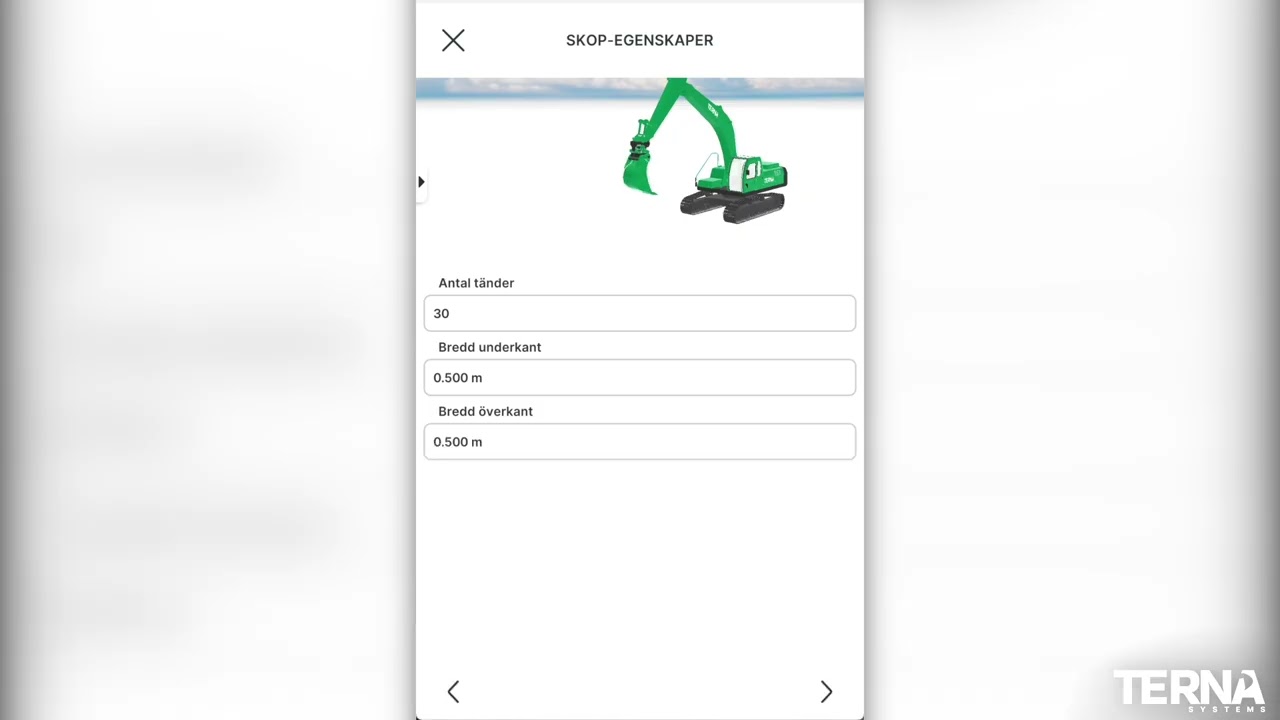
Bucket calibration
Explore the documentation#
-
The screen you work from: the info bar, the views of your machine and project, and the action buttons.
Overview · Views · Actions · Layout editor
-
Measure the distance from the tool point to points, lines and surfaces, and lock the reference you are working to.
-
Import design files, create planes and slopes on site, and log what has been built.
-
Choose the tools and attachments on the machine, set your cut-fill tolerances and keep a backup of your setup.
-
What each warning on the run screen means, such as low GNSS accuracy or a lost sensor signal, and how to resolve it.
-
New features, improvements and fixes in every version of the app.
Common tasks#
The TERNA3D™ app#
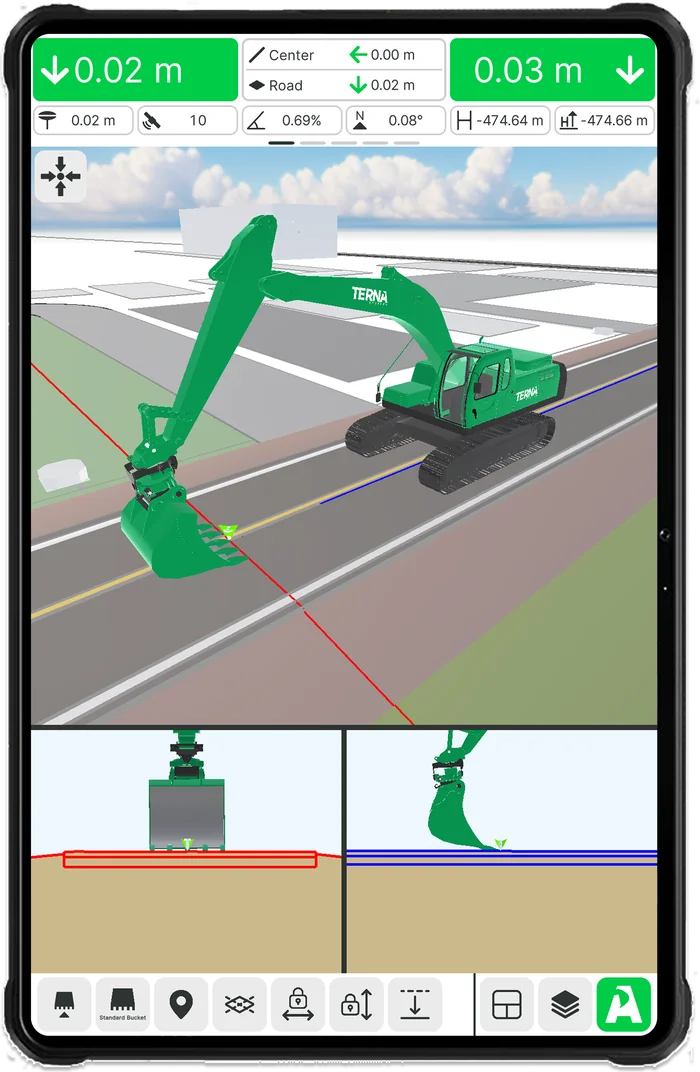
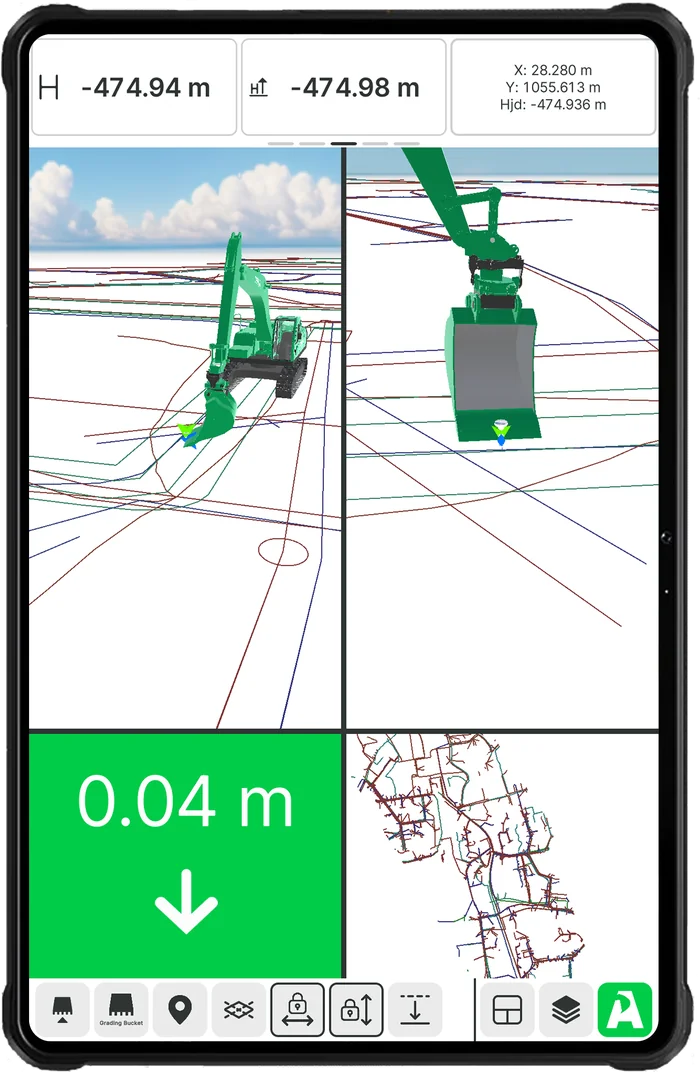
Follow the design in 3D
See the bucket against your surfaces and lines from several angles at once.
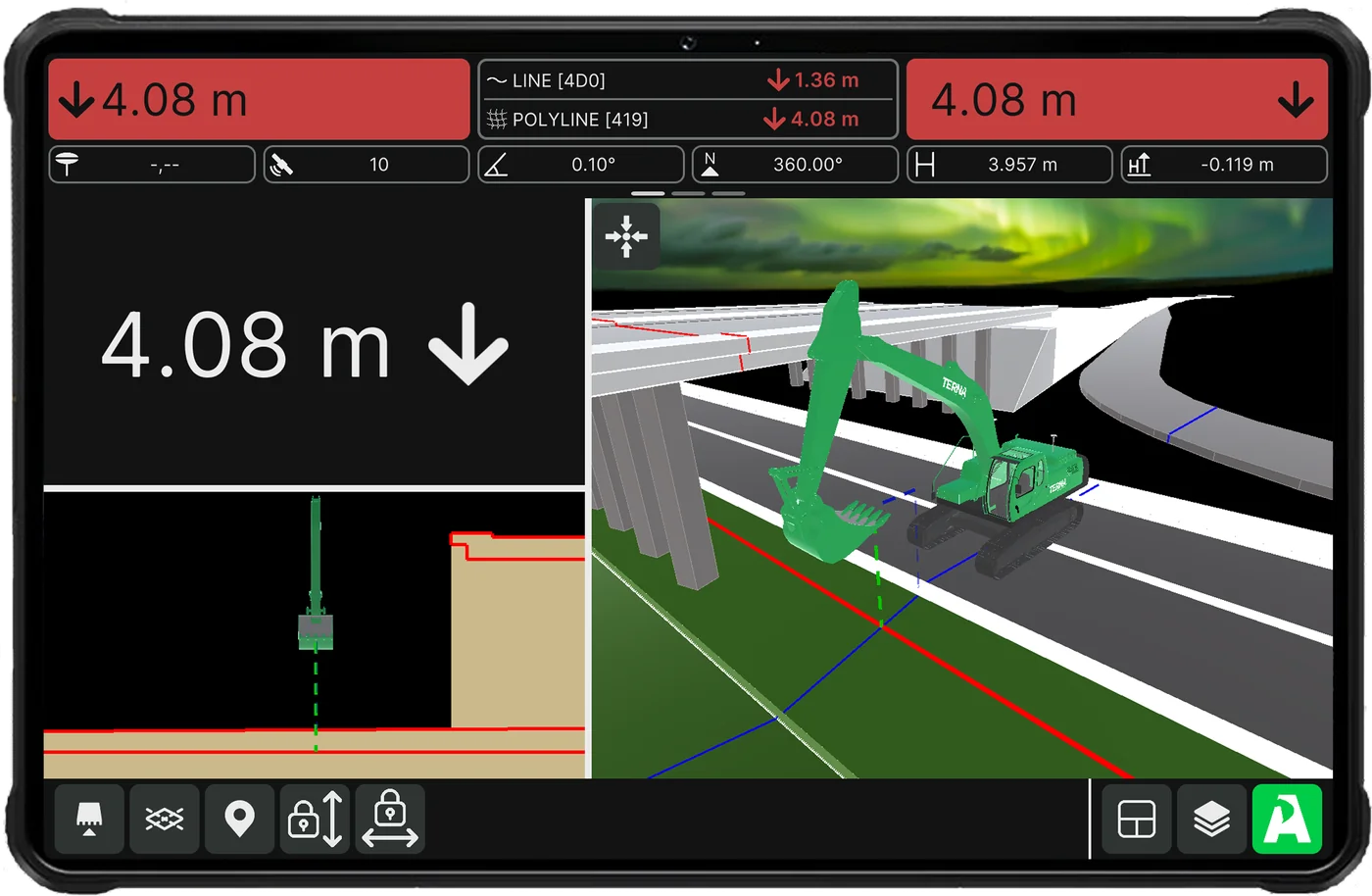
Work to lines, points and surfaces
Choose what to reference and read the distance to it at a glance.
How the system works#
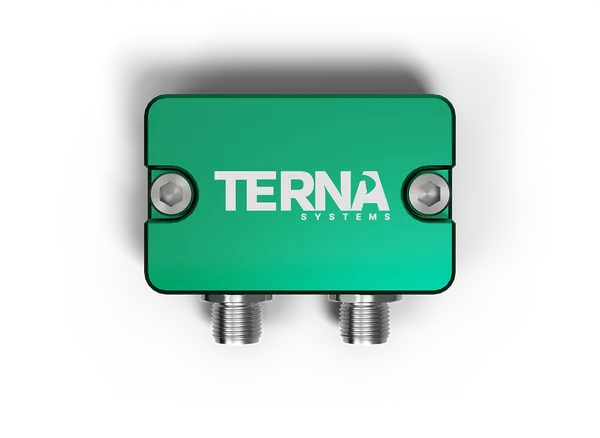
IMU sensors
Mounted on the boom, stick and bucket. They measure the angle of each part so the system always knows where the bucket is.
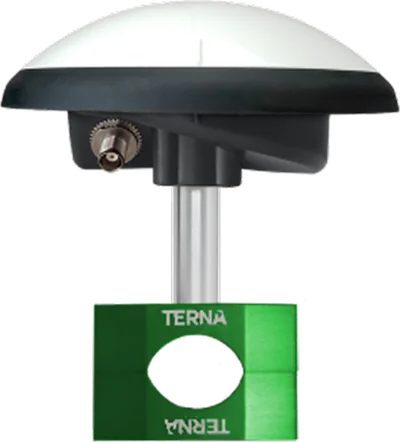
GNSS antenna
Receives the satellite signals the system uses to position the machine on site.
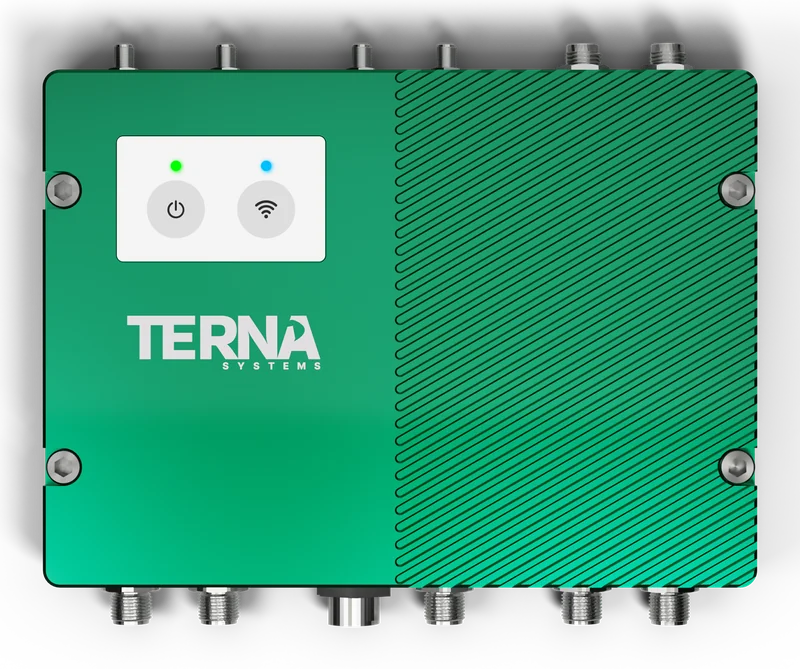
TERNA HUB
The central unit on the machine. It positions the machine with RTK GNSS and connects it to the internet over LTE.
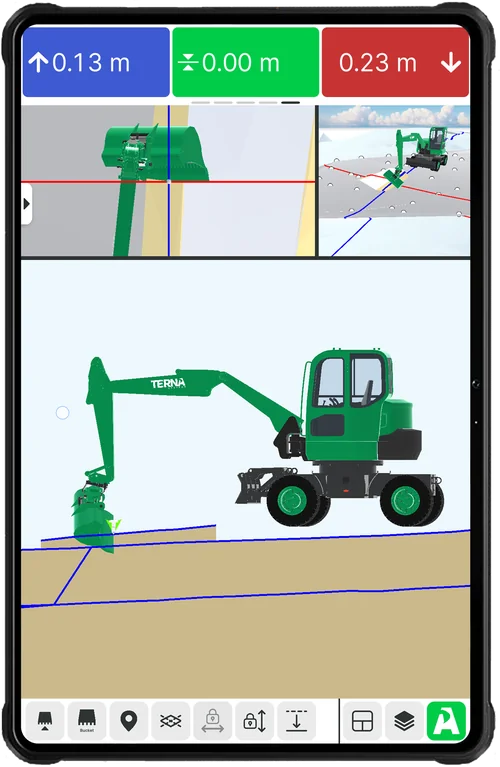
TERNA3D™ app
Runs on an Android tablet in the cab and shows the machine against your design in real time.
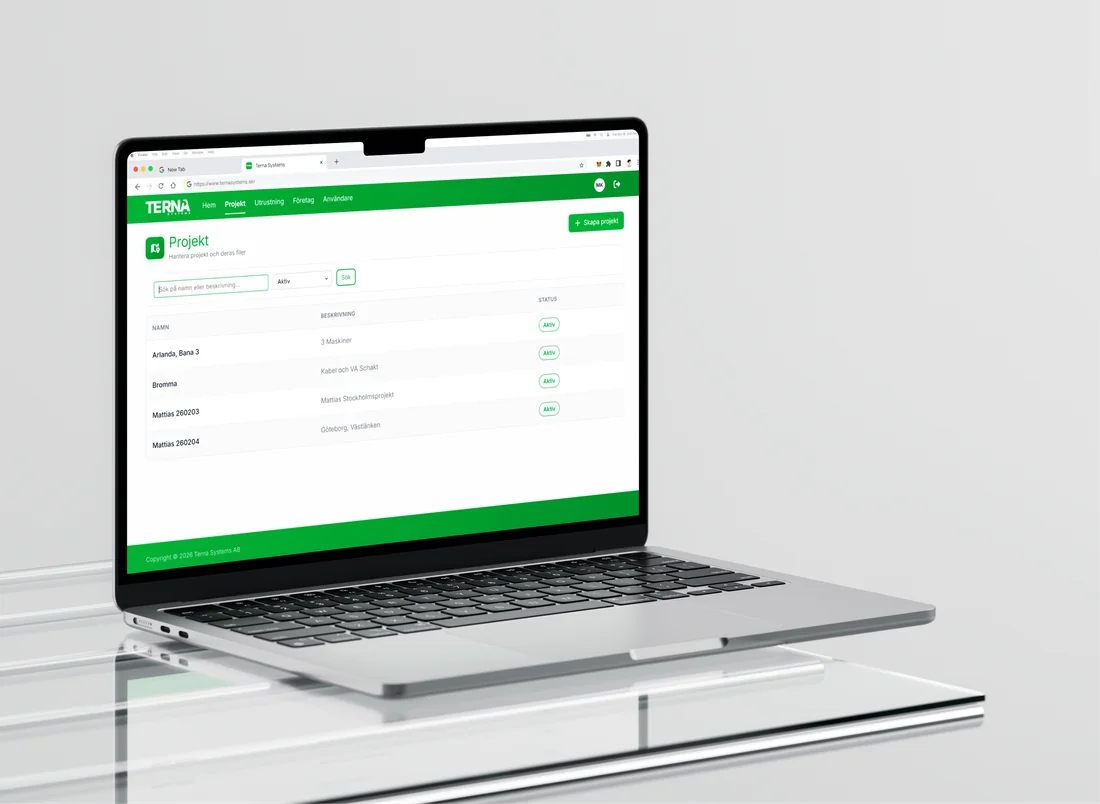
TERNA Cloud
Shares projects between the office and the machine, and receives the as-built points you log in the field.
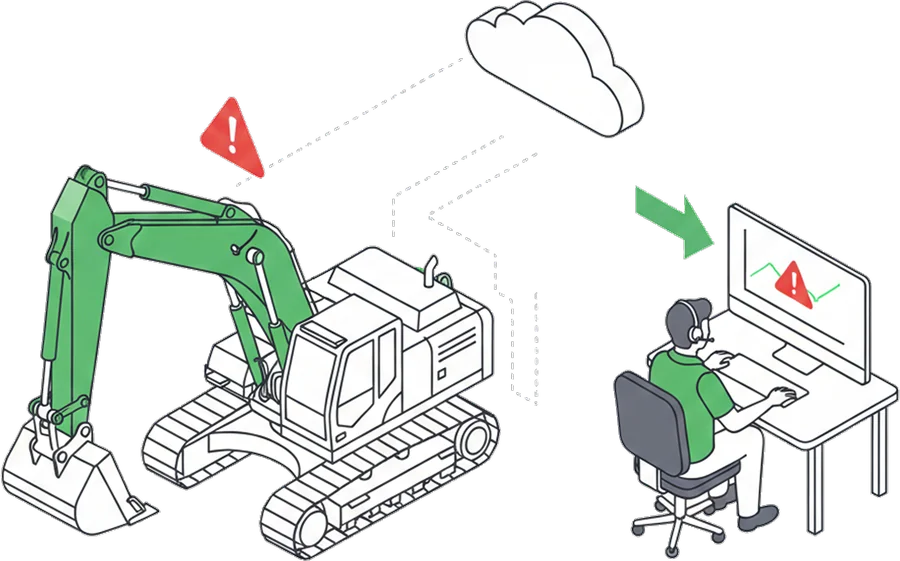
Need help?#
Open Support from the app's main menu to reach our team. Share your screen so they can see what you see and help you on the spot.
You can also email support@ternasystems.com, or look up a term in the glossary.