Warnings#
The Terna3D app has a warnings system that detects when certain parts of the system is not working as expected or external factors may compromise the effectiveness of the system. These warnings are displayed as notifications displayed in the top right of the run screen.
GNSS accuracy is low#
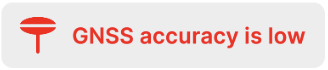
The current accuracy of the GNSS is low (per default more than 4 cm deviation, but this can be changed in the machine settings). This means all positional information in the app cannot be relied upon as the system is not accurate.
Cause and possible solutions
The accuracy of the GNSS can depend on multiple factors, most commonly:
- Antenna placement - The ideal antenna position should be 10-30 cm above any surface to prevent reflections of the signal being received by the antenna.
- Surrounding environment - Dense areas with trees and surrounding buildings could impact the GNSS accuracy negatively.
- Quick movement - Fast positional changes can temporarily lower the accuracy of the GNSS, such as quick rotation of the machine.
- The threshold for the warning can also be increased in the machine settings, resulting in it not being as sensitive.
Accuracy guide lines
Before increasing the threshold for the GNSS accuracy warning, make sure you follow the projects accuracy guide lines. Do not set the threshold higher than the required accuracy for the work currently being done.
GNSS not RTK fixed#
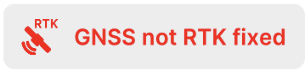
The positional GNSS corrections are not of RTK Fix quality, or there are no RTK corrections at all, resulting in poor positional accuracy.
Cause and possible solutions
This can be caused by the RTK service not being connected or a temporary loss in accuracy due to external factors, like environmental.
When the hub starts up it tries to connect to the RTK service provider and start receiving corrections. Corrections come in different types with different quality levels. The RTK Fix type is what enables centimeter level accuracy. If the corrections are of any other type, the precision is not considered good enough and the warning will show.
Missing position#
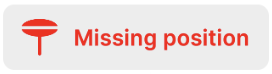
The GNSS is connected and GNSS data is being received. However there is no positional data included.
Cause and possible solutions
This is most likely because of environmental factors.
There is not much that can be done to fix this. If the warning does not disappear on it's own, try this:
- Confirm that the GNSS antennas are connected to the hub.
- Move the machine to a more open environment with an clear view to the sky.
Missing heading#
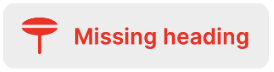
The GNSS is connected and GNSS data is being received. However there is no heading data included. This means the orientation of the machine cannot be determined.
Cause and possible solutions
Often the position information is received before the heading. Just wait a minute or so and see if the warning goes away automatically.
If the warning does not disappear on it's own, try the following:
- Confirm that both GNSS antennas are connected to the hub.
- Move the machine to a more open environment with an clear view to the sky.
GNSS not connected#
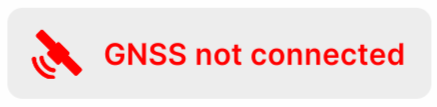
The app could not connect to the GNSS stream of the hub. This means no GNSS data is received.
Cause and possible solutions
This warning will mostly come together with the Sensors not connected warning. In this case the app is not connected to the hub.
- Make sure the tablet is connected to the Wi-Fi of the Terna Hub.
- Disable mobile data by either enabling airplane mode or go to Settings -> Network & internet -> Mobile network and disable mobile data at the top.
If the warning is not together with Sensors not connected:
- Try restarting the app by dragging from the bottom up and hold. Then swipe the app window up to close it.
Sensors not connected#
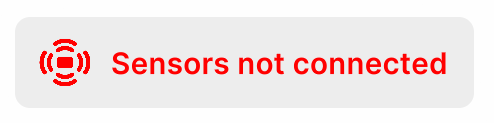
The app could not connect to the IMU stream of the hub. This means no IMU data is received.
Cause and possible solutions
This warning will mostly come together with the GNSS not connected warning. In this case the app is not connected to the hub.
- Make sure the tablet is connected to the Wi-Fi of the Terna Hub.
- Disable mobile data by either enabling airplane mode or go to Settings -> Network & internet -> Mobile network and disable mobile data at the top.
If the warning is not together with GNSS not connected:
- Try restarting the app by dragging from the bottom up and hold. Then swipe the app window up to close it.
- Check if the cables to the IMUs are still intact and connected.
IMU signal lost#
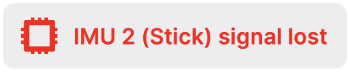
This warning means the app has not gotten any data from a certain IMU for some time. When the app receives data from the IMU again the warning disappears. The warning includes the ID of the IMU and on which part of the machine it is located.
Cause and possible solutions
There are multiple reasons why this could occur. If the warning just appears briefly it can be ignored, for instance when importing a file. If it is consistent:
- Make sure the cable to all the IMU sensors are securely connected as well as to the hub.
- Make sure the correct tool and attachments are selected in the app.
If still persistent, a cable might have broken or an IMU may need to be replaced.
Please contact our support team.
This has an overview of the most commonly used abbreviations used in the documentation.