Cut-Fill Tolerance Colors and Values#
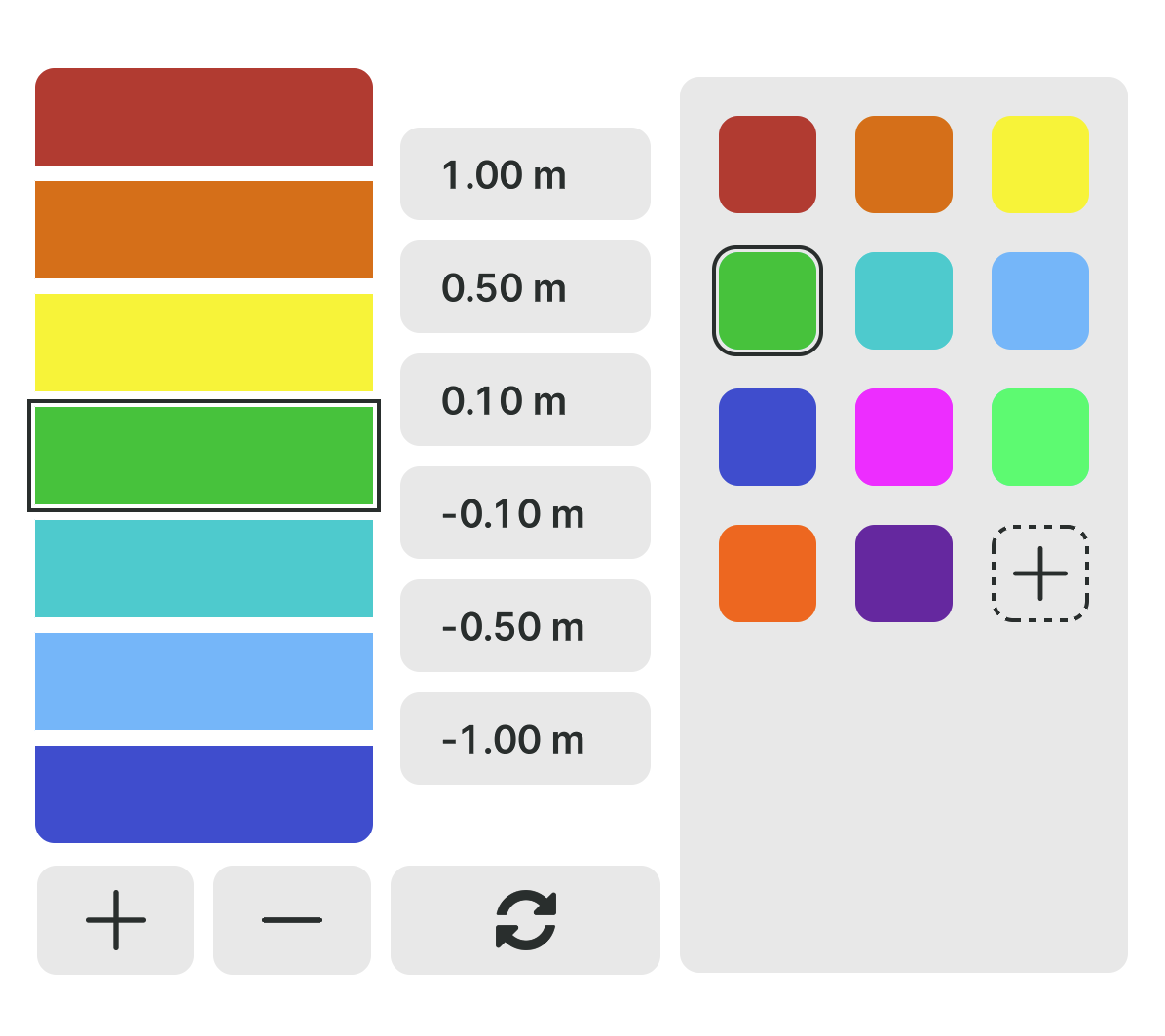
The Cut-Fill Tolerance Colors and Values settings allow you to customize how cut and fill elevations are visualized throughout the app's cut/fill widgets and views.
You can find these settings in App Settings.
Changing Colors#
The display on the left shows the colors currently used for cut/fill visualization.
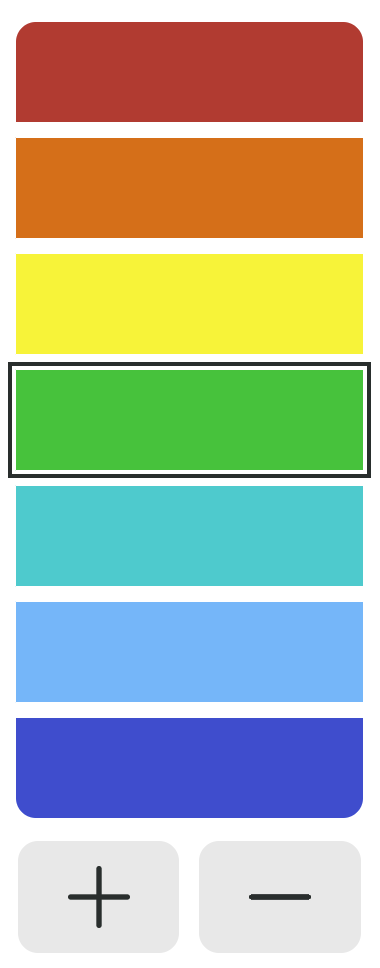
- Press the + button to add a new color level.
- Press the − button to remove a color level.
- To change a color:
- Select the color you want to modify in the list on the left.
- Tap on a color from the palette on the right.
- The selected color will immediately be updated.
Custom Colors#
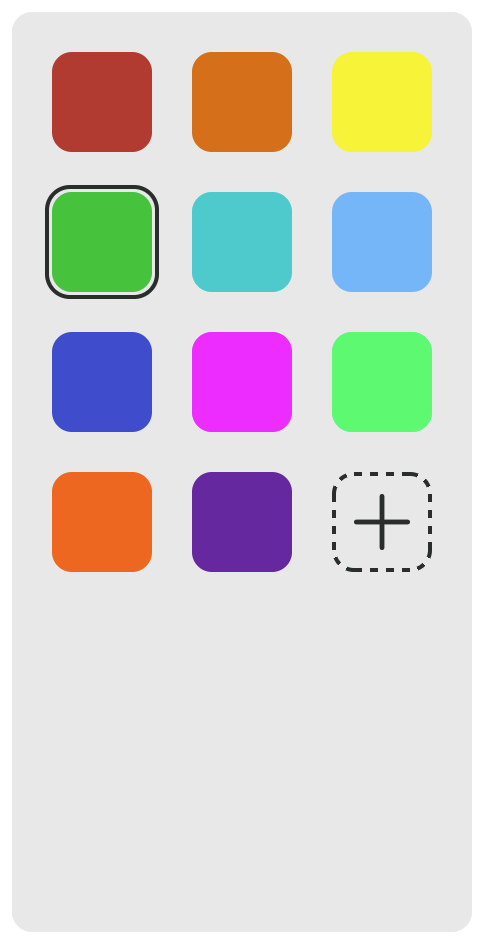
If the desired color is not available in the palette, you can create your own custom color.
- Press the dashed + button in the color palette panel.
- A color picker dialog will open.
- Use the HSV sliders to select any color.
- Press Select to add the color to the palette.
The new color will remain available in the palette for future use.
Removing Custom Colors#
Custom colors can be removed from the palette by pressing the X button displayed in the corner of the custom color. 
Setting Tolerance Values#
Next to the color list on the left are a series of height value fields. 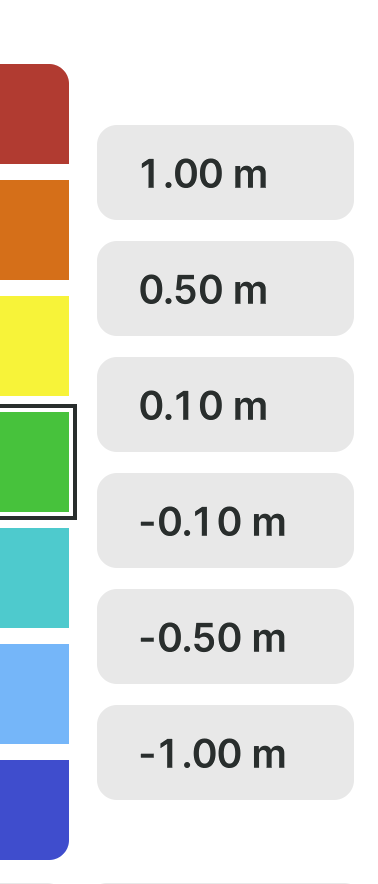
Each value represents the threshold between two adjacent colors and determines when the visualization changes from one color to the next.
Editing Values#
- Tap a value field to edit it.
- Enter the desired height value.
- Values can be set to any numeric value.
The tolerance values are always maintained in descending order (highest to lowest) to ensure a valid color range configuration.
Resetting to Defaults#
To restore the default colors and tolerance values, press the Reset button.

This will reset:
- All used colors
- All tolerance values
to the application's default configuration.
This has an overview of the most commonly used abbreviations used in the documentation.